Manage Flows
The Flows page lets you organize your Flows into folders, search and filter the list, duplicate an existing Flow, and import and export Flows.
Organize Flows into Folders
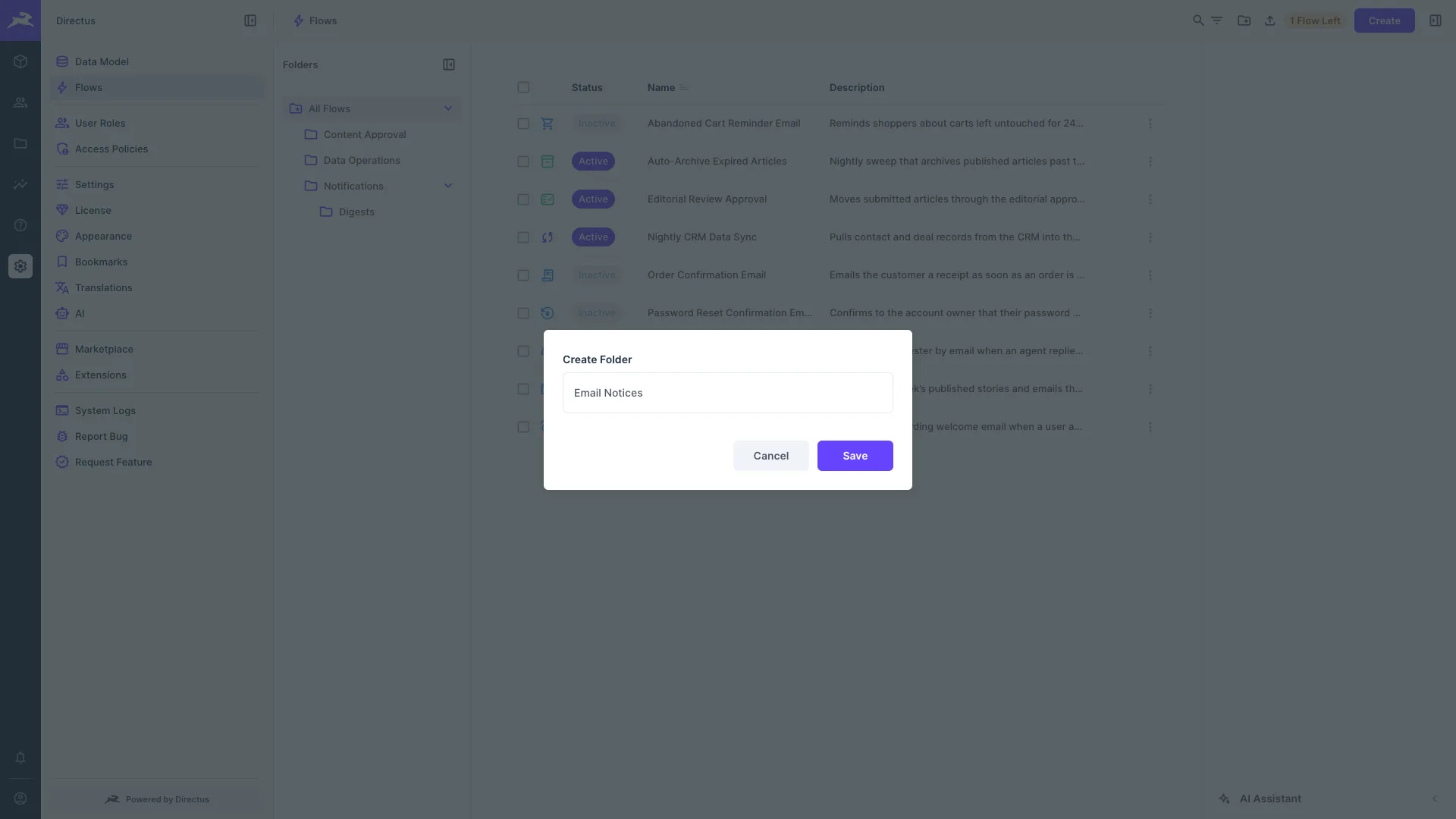
Use the folder sidebar to group related Flows. The sidebar is resizable and can be collapsed to give the canvas more room.
- Create a folder — Select Create Folder in the header bar and give it a name.
- Rename or delete a folder — Open the folder's context menu.
- Move Flows — Select one or more Flows and choose Move Folder.
The selected folder is stored in the page URL, so you can bookmark or share a link to a specific folder.
Search and Filter Flows
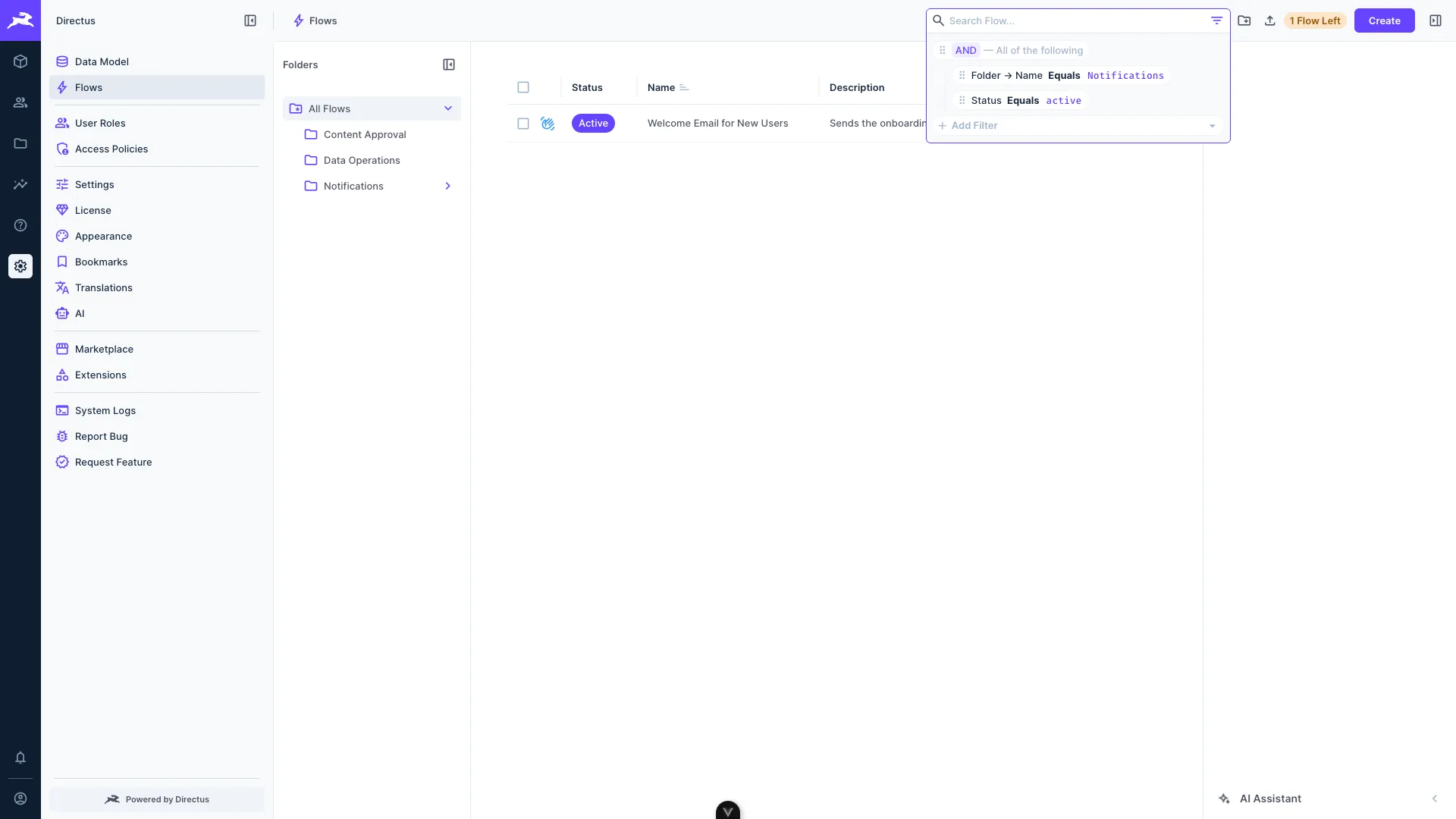
Use the search box to find Flows by name, and the filter control to narrow down the list.
Duplicate a Flow
To copy a Flow along with all of its operations, open the Flow's context menu and select Duplicate. The copy is placed in the same folder as the original.
Export a Flow
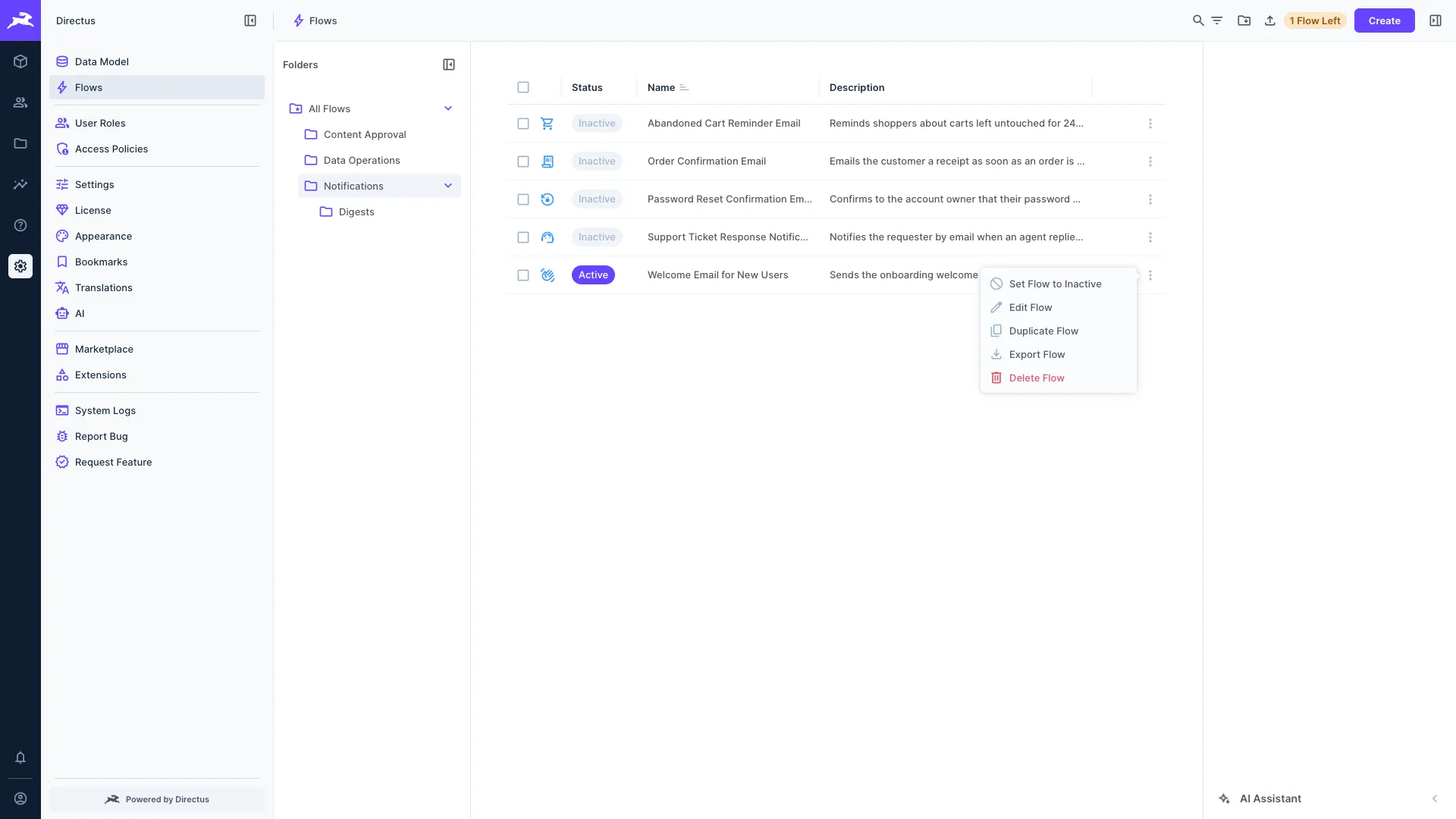
To export a Flow, open the Flow's context menu and select Export Flow. This downloads a JSON file containing the Flow and its operations.
Import a Flow
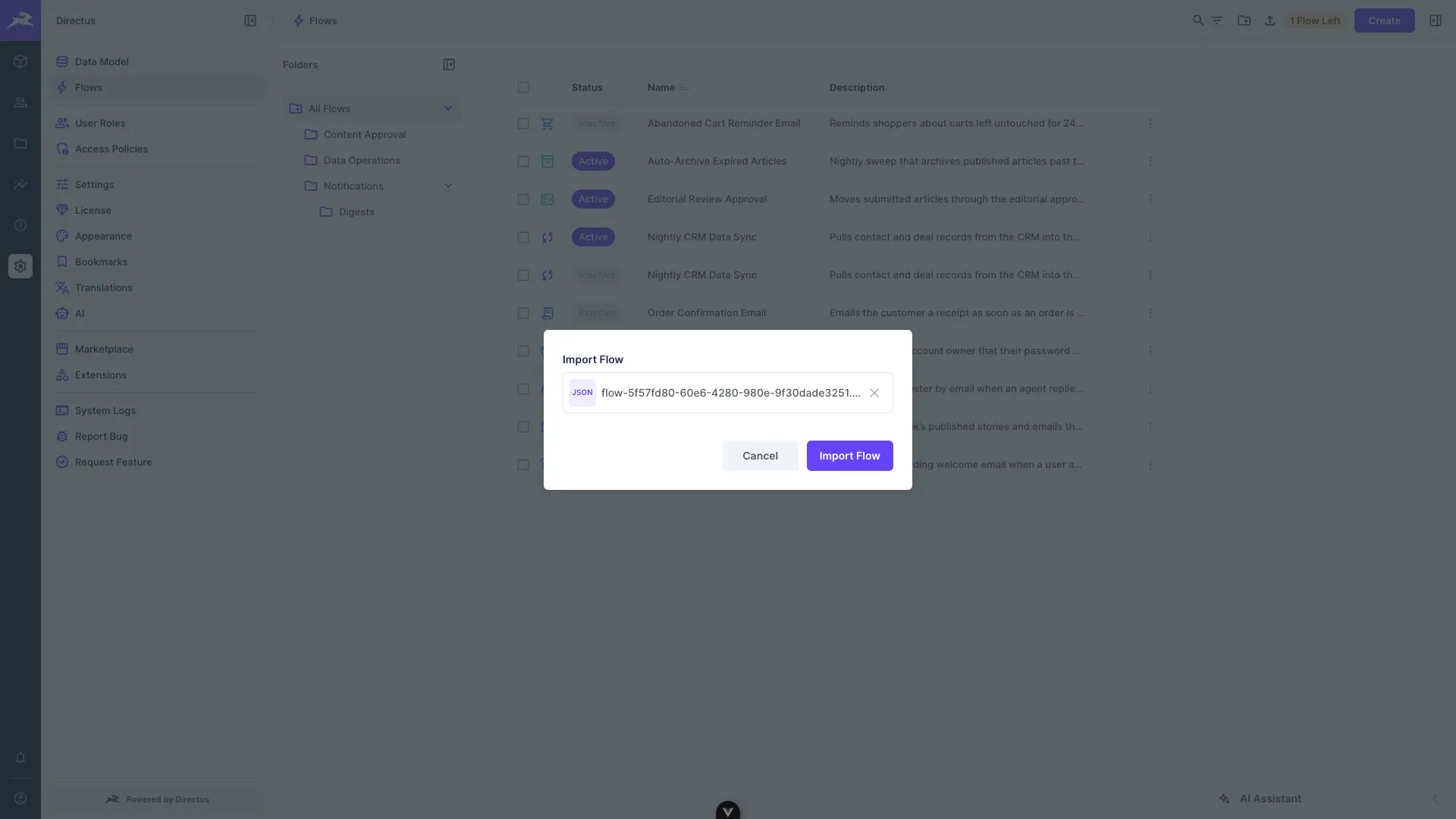
To import a Flow, select Import Flow in the header bar and choose a JSON file that was previously exported. If a folder is open when you import, the Flow is placed in that folder.
Get once-a-month release notes & real‑world code tips...no fluff. 🐰